Combine PDF files into one document
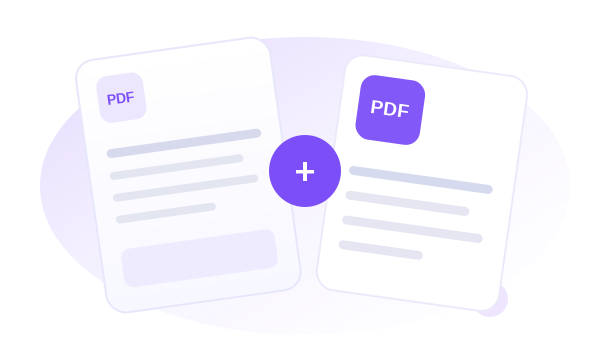
Use Merge PDFs to join multiple PDF files into a single document. It is useful for combining reports, application documents, invoices, notes or separate chapters before sharing or archiving them.
How to merge PDFs
- Click Choose PDFs and select at least two PDF files.
- Select the files in the order you want them combined, or arrange the selection order before starting.
- Click Merge files.
- Download the combined PDF and check the page sequence.
Before merging
Make sure each file opens correctly and is not damaged or password-protected in a way that prevents processing. If the combined file is large, consider whether you need every page. You can use Split PDF to keep selected pages from a document.
Frequently asked questions
How many PDFs can I merge?
You can select multiple PDF files. Processing time depends on their size and page count, as well as your device.
Will merging reduce PDF quality?
Merging combines pages; it is not intended as an image-compression step. Always review the downloaded file to confirm the result.