Crop a document photo before OCR
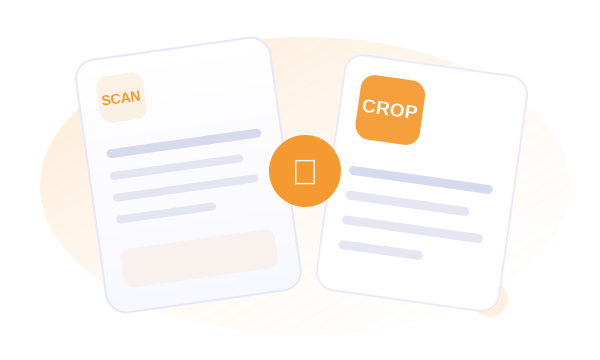
A document photo may include a desk, background objects, shadows or empty borders. The Scanner with Crop tool helps you frame the page area before sending the crop to the Image to Text OCR workspace.
How to crop a document image
- Choose a document photograph or scanned image.
- Drag the crop handles to include the page area you need.
- Check that all lines of text are inside the crop.
- Select Crop & send to OCR. If you are on this standalone page, the cropped image is downloaded for you to upload to Image to Text OCR.
Tips for better document scans
Photograph the page from directly above, use even lighting, avoid glare and keep the full text area in focus. Cropping can remove surrounding clutter, but it cannot restore text that is blurred or missing from the original photograph.
Frequently asked questions
Does cropping automatically recognise text?
No. Cropping prepares the image. Use the Image to Text OCR tool to recognise and edit the words.
Can I crop a PDF?
This tool accepts an image file. Export a PDF page as an image first if you need to crop a page from a PDF.